13. Tuning System

플레이어의 기본 튜닝은 A440(MIDI 노트 69)을 기준으로 한 서양 표준 12음 평균율(12TET)임. Scala 파일과 키보드 매핑 파일을 통해 다른 튜닝 시스템도 사용할 수 있으며, 개별 노트의 피치도 직접 조정할 수 있음. 또한, MIDI 튜닝 표준(MTS), MTS-ESP 마스터 플러그인, VST/VST3의 노트별 디튠 정보 등 외부 튜닝 데이터도 지원함.
Basic information
Section titled “Basic information”피치 소리의 높고 낮음을 느끼게 하는 지각적 특성으로 일반적인 음의 기본 주파수와 일치함.
튜닝 시스템 MIDI 전 음역에 해당하는 각 노트의 주파수를 정의한 체계임. 보통 상대적인 음계 구조와 하나의 기준 주파수로 구성되지만, 모든 시스템이 옥타브 단위로 반복되는 것은 아님.
콘서트 A 가온 C 위의 A음(MIDI 69)임. 오케스트라 조율의 기준음으로 사용됨.
가온 C 88건반 피아노에서 왼쪽부터 네 번째 C임. 일반적으로 C4로 표기하며, MIDI 번호는 60임. Player 설정에 따라 C3 또는 C5로 바꿀 수 있음.
튜닝 콘서트 A의 주파수를 의미함. 표준 피치라고도 부름.
음률 옥타브 비율 2:1과 12분할을 전제로, 자연 음정에서 발생하는 차이를 일정한 방식으로 분배한 튜닝 체계임.
12 평균율 음악에서 가장 기본적으로 쓰는 튜닝 시스템임. 12TET 또는 12EDO라고 표기함.
인토네이션 각 음의 실제 음높이임. 주파수로 표시하거나 기준음 대비 얼마나 어긋났는지로 나타냄.
센트 음정 간격을 나타내는 로그 단위임. 12음 평균율에서는 한 반음이 100센트임.
Scala 튜닝 시스템을 정의하는 파일 형식 표준임. .scl 파일은 스케일의 음 간격과 반복 방식을 지정하는 파일임. 보통 .kbm keyboard mapping 파일과 함께 사용함.
MTS 인토네이션 정보를 전달하기 위한 표준 MIDI SysEx 메시지.
MTS-ESP master plugin이 여러 client plugin에 튜닝 값을 공유하는 방식임.
VST/VST3 detune host가 Note On에 함께 보내는 노트별 디튠 값임.
The Tuning System window
Section titled “The Tuning System window”메뉴 바에서 Help(?) 아이콘 옆의 tuning fork 아이콘을 클릭하면 Tuning System 창이 열림. 여기서 Player의 튜닝 시스템을 선택하거나 직접 설정할 수 있음. 서양 표준 12 tone equal temperament(12TET) 이외의 튜닝이 활성화되면 버튼이 파란색으로 표시됨.
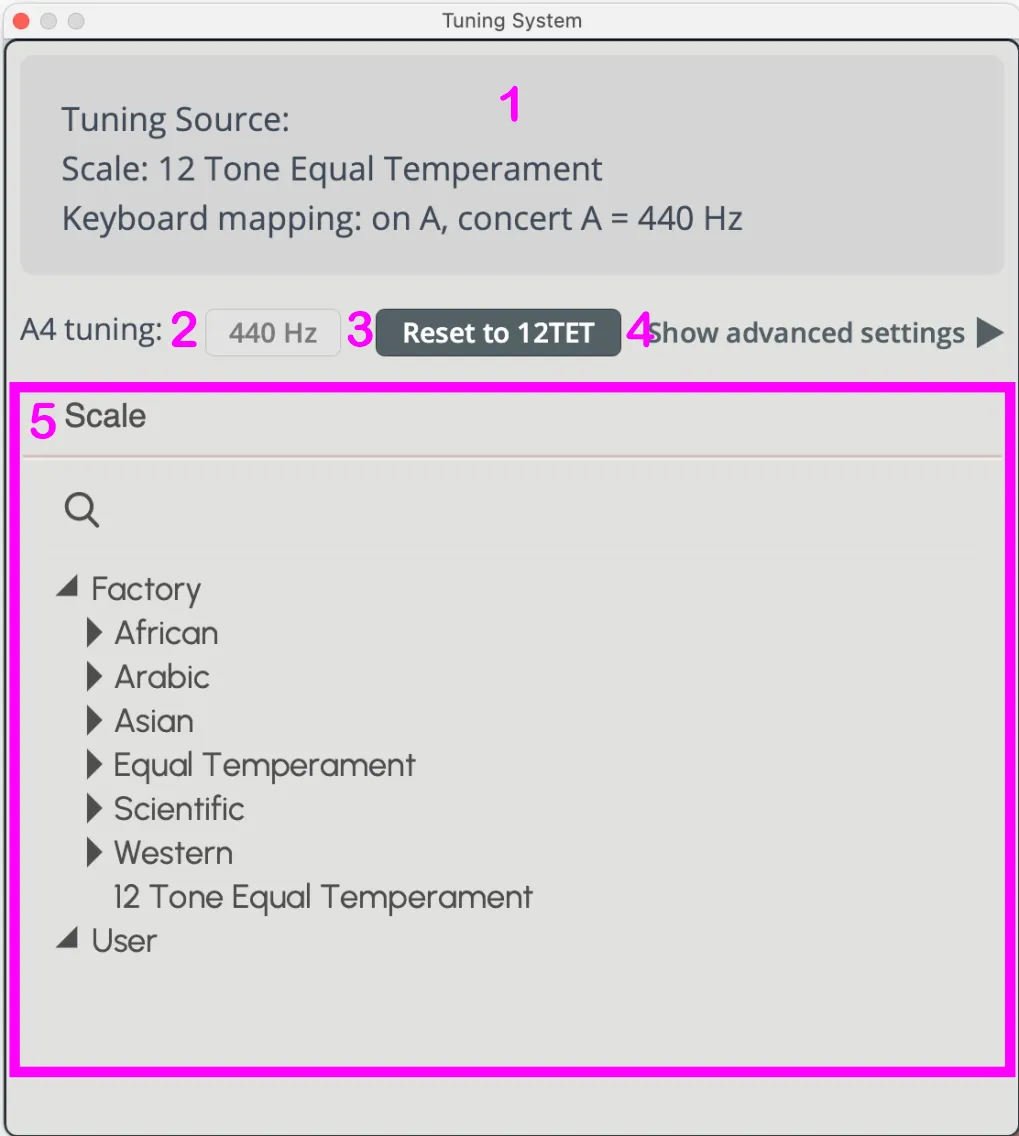
Current tuning source 창 왼쪽 상단에 현재 선택된 scale과 해당 keyboard mapping이 표시됨. 외부에서 튜닝 값을 받아오는 경우 그 소스 이름이 여기에 표시됨.
Tuning note and frequency 기본값은 concert A(440 Hz)이며, 현재 기준이 되는 음의 주파수를 표시함. 필요하면 사용자가 값을 변경할 수 있음. keyboard mapping에서 concert A가 아닌 다른 음을 기준으로 지정한 경우에는 그 음의 이름과 주파수가 대신 표시됨. - Player의 일반 설정에서 Middle C 표시 방식을 바꾸면, 여기 보이는 옥타브 숫자도 달라질 수 있음 – Player에 있는 “Tuning”(자동화용 파라미터)을 host에서 조절하면 A4(440 Hz)의 기준 주파수를 자동으로 변경할 수 있음. 단, A4 이외의 튜닝을 기준으로 사용하면 이 파라미터가 적용 않됨. 일부 built-in tuning system은 기준음이 A4가 아님.
Reset to 12TET 클릭하면 Scale browser에서 다시 찾지 않아도 기본 설정으로 바로 복귀함. 기본값은 scale “12 Tone Equal Temperament”와 keyboard mapping “on A69, A69 = 440 Hz” 조합임.
Scale browser built-in tuning system이 유형별 폴더에 정리되어 있으며, 검색창으로 원하는 항목을 필터링할 수 있음.
Show / hide advanced settings 기본 화면에서는 내장 튜닝을 선택하는 기능만 표시됨. advanced settings를 열면 외부 튜닝 연동이나 사용자 정의 튜닝 등 추가 설정이 가능함.
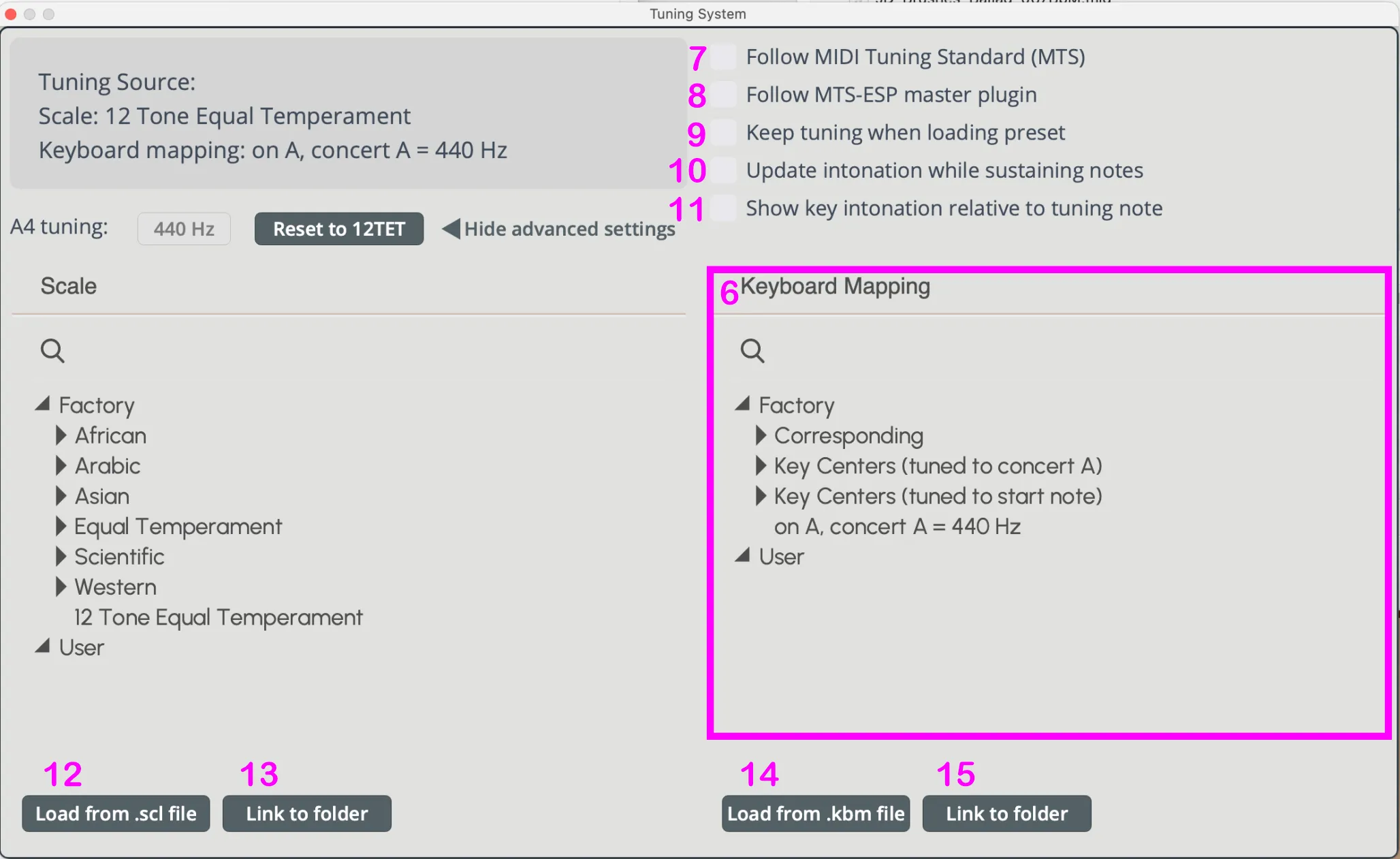
Keyboard mapping 다른 keyboard mapping을 불러와 scale의 start note와 tuning note를 지정하는 항목임. 검색창으로 원하는 항목을 찾을 수 있음. scale을 로드하면 같은 기본 파일명을 가진 .kbm 파일을 자동으로 함께 불러옴. built-in tuning system에 대응하는 keyboard mapping은 “Corresponding” 폴더에 있음. 일치하는 .kbm 파일이 없으면 기본 keyboard mapping(12 keys, A = 440 Hz)이 적용됨. - 다른 keyboard mapping을 선택하면 현재 tuning system의 start note를 바꿀 수 있음. Key Centers (tuned to A4)Key Centers (tuned to A4)” 폴더에는 12개의 mapping이 들어 있으며, 가운데 옥타브의 어떤 음이든 start note로 지정할 수 있고 이 경우 tuning note는 concert A로 유지됨.
Follow Midi Tuning Standard (MTS) 활성화하면 Player가 MIDI Tuning Standard(MTS)를 따름. 예를 들어 Logic Pro의 Hermode tuning 적용 시 필요함. (기본값은 off)
Follow MTS-ESP master plugin 활성화하면 Player가 MTS-ESP master plugin이 제공하는 intonation을 따름. (기본값은 off)
Keep tuning when loading preset 체크하면 preset을 로드해도 현재 선택된 tuning system이 유지됨. 튜닝을 고정한 상태에서 다른 사운드를 불러올 때 사용함.
Update intonation while sustaining notes 활성화하면 음을 누르고 있는 동안에도 모든 키의 intonation을 계속 갱신함. 비활성화하면 노트를 눌렀을 때만 적용됨. Hermode tuning이나 scale morphing을 사용할 때 필요함.
Show key intonation relative to tuning note tuning note를 기준으로 virtual keyboard에 표시되는 intonation 값을 계산해서 표시함. tuning note의 주파수를 바꿔도 표시 값은 변하지 않음. 기준음이 표준 주파수와 달라도 scale의 음 간격을 쉽게 확인할 수 있음.
Load from .scl/.kbm file 로컬 파일 시스템에서 단일 Scala 또는 keyboard mapping 파일을 로드하는 기능임.
Link to folder 로컬 폴더를 지정하면 해당 폴더의 .scl/.kbm 파일이 browser의 “User” 섹션에 표시됨. 파일이 많을 경우 처음 200개까지만 표시됨.
Keyboard display
Section titled “Keyboard display”Tuning System window가 열려 있으면 Player의 키보드에 모든 MIDI 노트의 intonation 값이 표시됨. 기준은 12TET(440 Hz)이며, 각 음이 그 기준에서 얼마나 벗어났는지를 센트 단위로 보여줌.
빨간색은 기준보다 높은 값, 파란색은 기준보다 낮은 값, 초록색은 0을 의미함. 튜닝 시스템에 start note가 설정되어 있는 경우 해당 음은 검은색으로 표시됨. Tuning System window를 닫으면 검은 점으로 표시됨.
값을 변경하려면 마우스로 위아래로 드래그하면 됨. Shift+드래그하면 미세 조정 가능하며, Ctrl/Cmd+클릭하면 초기화됨.
더블 클릭하면 입력창이 열리고, 값을 직접 입력 후 Enter로 적용함.
Alt/Option+드래그하면 모든 옥타브의 같은 음을 동시에 변경됨. 텍스트 입력 시에도 Alt/Option + Enter를 사용함.
예를 들어, 바로크 음악에서 자주 쓰이는 Just Intonation에서는 start note와 tuning note가 모두 concert A임. 기준음이 A이기 때문에 해당 음은 0 cent로 표시됨.
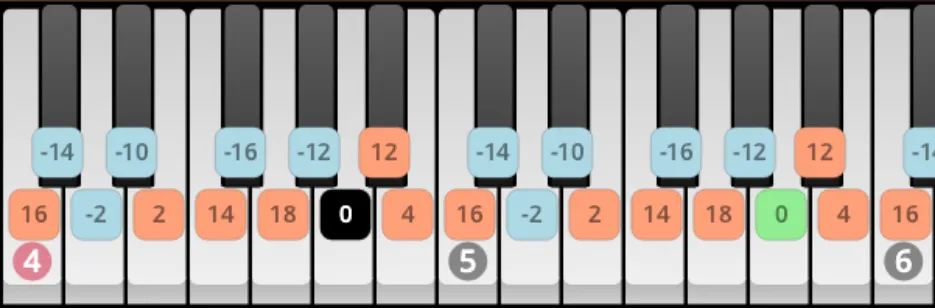
intonation 값은 -700~+700 cent 범위에서 직접 조절할 수 있음(대략 완전5도 아래에서 위까지 범위임). 이 범위를 넘어가는 튜닝에서는 값 대신 spin에 “>” 또는 “<” 기호로 표시됨. spin 위에 마우스를 올리면 왼쪽 아래 상태 표시줄에 정확한 수치가 표시됨
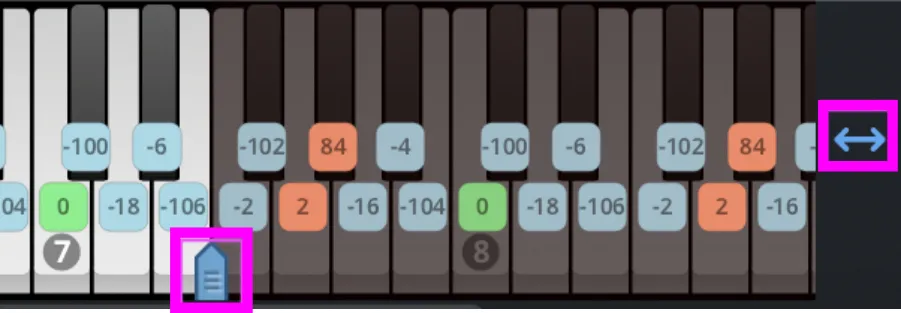
24 평균율처럼 옥타브를 12단계 이상으로 나누는 튜닝 시스템에서는 더 넓은 연주 범위가 필요한데, 오른쪽의 double-arrow 버튼을 클릭한 뒤 play range 핸들을 드래그하면 기본 범위에서 위아래로 최대 3옥타브까지 확장할 수 있음.
Sequencing of manual adjustments
Section titled “Sequencing of manual adjustments”Scale browser에서 튜닝 시스템을 불러오면 해당 스케일에 맞는 keyboard mapping도 함께 자동으로 로드됨. 이 과정에서 이전에 수동으로 조정한 intonation 값과 tuning note 주파수는 초기화됨.
- 원하는 scale을 먼저 불러옴.
- 필요한 경우 keyboard mapping을 로드함.
- tuning note의 주파수를 맞춤.
- 각 음의 intonation 값은 수동으로 조정함.
- 현재 설정을 preset으로 저장함.
Saving and loading presets
Section titled “Saving and loading presets”Synchron Libraries에서 제공하는 factory preset은 기본값이 12TET, concert A 440 Hz로 설정되어 있음.
user preset을 저장하면 현재 사용 중인 tuning system과 관련 설정도 함께 저장되며, 다시 불러올 때 그대로 복원됨. 현재 튜닝을 유지하면서 preset을 불러오려면 advanced Tuning System 설정에서 해당 옵션을 체크하면 됨.
preset에 함께 저장되는 항목 현재 scale과 keyboard mapping, tuning note의 주파수, 모든 intonation 값, 외부 튜닝 사용 여부.
preset에 저장되지 않고 Player의 환경 설정에 따르는 항목
- Keep tuning when loading presets
- Update intonation for sustaining notes
- Show key intonation relative to tuning note
Handling of external tuning sources
Section titled “Handling of external tuning sources”MTS, MTS-ESP 또는 VST/VST3 detune를 활성화하면 다음 GUI 항목은 사용할 수 없음.
- tuning note’s frequency (2)
- Reset to 12TET (3)
- Scale browser (4)
- Keyboard mapping browser (6)
- Show key intonation relative to tuning note (12)
- Load from .scl/.kbm file (13)
- Link to folder (14)
외부 튜닝은 한 번에 하나만 사용할 수 있어서, 하나를 활성화하면 다른 외부 튜닝은 자동으로 해제됨. 현재 활성화된 외부 튜닝을 끄면 기본 튜닝인 12TET(440 Hz)로 돌아가며, 위 항목들도 다시 사용할 수 있음.
Microtonal playback in Dorico
Section titled “Microtonal playback in Dorico”Dorico에서 마이크로톤 악보를 재생하면 음정 정보는 두 가지 방식으로 전달됨.
- VST2 플러그인은 VST NoteOn 이벤트에 detune 값을 함께 보내므로 Player가 음정을 처리할 수 있음.
- VST3 플러그인은 음정 정보를 VST Note Expressions 방식으로 전달함. 이 방식은 Synchron Piano Player에서 처리하지 못하므로 Dorico에서 detune 값을 보내도록 설정을 변경해야 함.
Dorico에서 Player를 플러그인으로 불러오면 VST/VST3 detune 정보를 받도록 자동 설정됨. 일반적으로는 이 설정만으로 충분하지만, 전체 튜닝 기능을 자주 사용한다면 Synchron Piano Player의 Settings > Interface 탭에서 Top Bar의 Tuning System 버튼 숨김을 해제하면 됨.
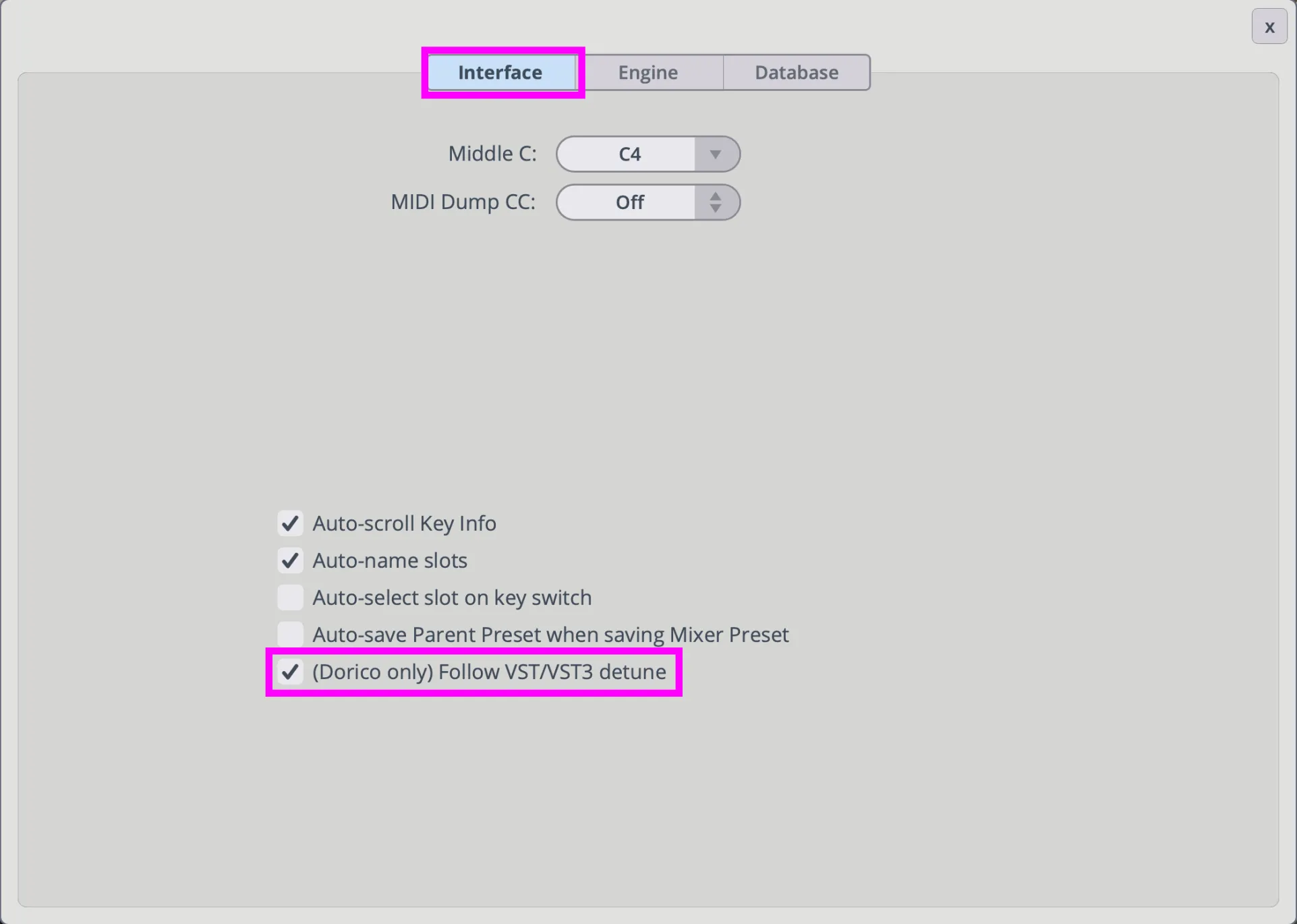
VST2 플러그인을 사용하면, 별도의 설정 없이도 Dorico의 마이크로톤 재생이 작동하지만, VST3 플러그인을 쓰려면 Dorico에서 아래 설정을 한 번 변경해야 함.
- Library → Expression Maps로 이동
- 왼쪽에서 사용하는 expression map을 선택. 잘 모르겠으면 Default를 선택.
- Expression Map Data 탭 선택.
- Microtonality playback 드롭다운 메뉴에서 Detune 선택.
- 설정 저장
Built-in tuning systems
Section titled “Built-in tuning systems”아래 링크에는 built-in tuning system의 intonation을 12TET(440 Hz) 기준 cent 단위로 표시함.
해당 튜닝 시스템은 아래 자료를 참고해 구성함.
- World Scales Pack by Sevish
- Scale Workshop by Sevish
- Andreyamakesmusic
- Organ tuner Franz Eisenhut
- Prof. Bill Sethares
- Dr. Gerhard Rosner